

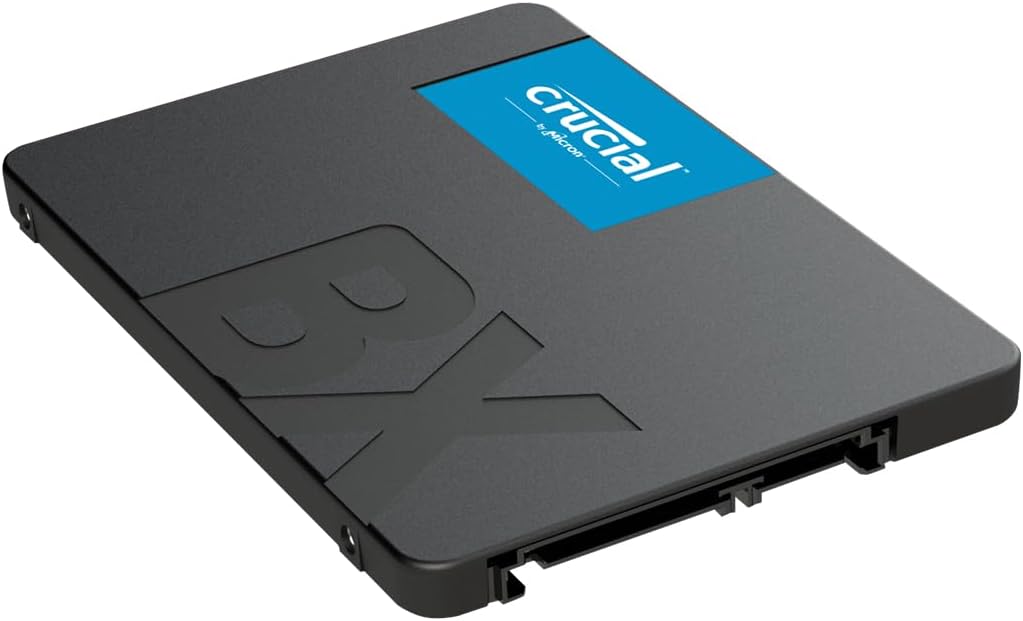
These days, saving stuff in the cloud is popular, but using external SSDs or hard drives, flash drives or USB sticks is just as common. The problem is that sometimes, these latter options might have a read-only message. You can’t write onto the device, you can only read from it, which could prove to be quite the issue. And here’s why that happens, and how you can fix this problem.
What leads to the read-only issue?
Generally, there are 2 main reasons why you encounter this read-only error. For example, the drive was formatted in a way that does not allow your Mac to write on it. NTFS is a format that might end up doing that on a Mac. It can also happen if you are switching from an older Intel Mac to Apple Silicon as well.
Another situation is when you have permission settings not set up properly. They could lock you to just reading the stuff and not writing, which is naturally a problem that you want to tackle. With that being said, the format type matters, NTFS is a problem on a Mac, whereas FAT 32, Mac OS Extended or APFS are usually ok.
Fixing the read-only issue on your hard drive
Reformatting the drive
Reformatting is usually a last-resort thing as you are wiping all the data from the device. And naturally, that means reinstalling all the apps. You need to create a backup for this thing when possible, mainly because it offers you the means to integrate new stuff, and it will help convey a better experience going forward.
With that in mind, reformatting does help if you also have all kinds of other issues, and it makes sense to approach it when that happens. Making sure that you are formatting the drive from time to time will help quite a lot, especially if you have the read-only problem. But as we said, it’s mostly a last-resort solution here, as you can solve permission problems in other ways as well.
If you want to reformat the drive, do the following:
- Make sure that the drive you want to format is plugged in, and then enter the Disk Utility app.
- Select the external disk from the Disk Utility’s sidebar.
- Press the Erase button.
- Now you want to type in the name of that reformatted drive.
- Choose the Mac OS Extended format.
- Press Erase again.
- The drive will be reformatted, and now you can write onto it.
That’s a great idea because not only will it streamline the reading and writing process, it will also make the experience better and more consistent. At the end of the day, it’s one of the simplest ways to solve the problem, but there are some remaining files and stuff that you need to tackle here, so keep that in mind.
Fixing permissions problems
If you’re not going to reformat to a supported format, then you will need to fix the permissions. A lot of the time, this read-only issue has to do with permissions not being set correctly. A very good rule of thumb is to do the following:
- Choose the drive in Finder
- Press Command+I so you can display the Get Info window.
- At the bottom of that window, click the Sharing & Permissions arrow to see the permissions
- In the Privilege menu right near your username, choose to Read & Write.
- Close the Get Info window
It’s not very hard to learn how to fix the error, but it will take a little bit of getting used to. When you are changing these settings, you will have to insert your password as well. That way, you are showing that you agree to the fix and everything should be fine here.

Sometimes, there might be a need to do a complete disk repair if possible. And that’s important, because there might be a lot of situations where the drive is dealing with bad or obsolete permissions. Enter the First Aid tool and that will allow you to repair the disk with ease. In the end, it’s going to make the experience easier and more cohesive, and you don’t have to worry about anything else.
Closing thoughts
It’s a great idea to check things out and see how you can optimize and modify everything within your hard drive, while solving any permission errors. These errors might sometime not allow you to write anything on your hard drive or SSD, so they can be very serious. Of course, if the drive is empty or without valuable files, you can downright delete those things and you will be good to go. In the end, it’s a great idea to reformat, or if not, at least solving permission issues will be more than enough, as it will eliminate these writing problems.

 Your total news and information resource for all things Science, Technology, Engineering / Mathematics, Art, and Medicine / Health.
Leave a Comment